
Direct / manual
0 AI credits
Write notes, manage Context, and write or schedule your own social content directly. These everyday actions do not require Conteenua AI credits.
CONTEENUA COMPANION · DESKTOP APP
Conteenua Companion connects repositories you approve on your computer with the Use your own AI coding experience in Conteenua web and mobile. Choose the installer for your operating system below.

CHOOSE THE PATH THAT FITS THE WORK
Conteenua keeps these paths separate so choosing one does not silently spend credits or switch providers.
0 AI credits
Write notes, manage Context, and write or schedule your own social content directly. These everyday actions do not require Conteenua AI credits.
0 Conteenua AI credits
Companion connects your approved local repositories to a normal ChatGPT conversation. It uses the ChatGPT account you already have and never falls through to Conteenua’s paid executor.
Uses Conteenua AI credits
Use GitHub Context when you want Conteenua to run the hosted coding workflow, verify the result, and return it as Ready to apply with Apply, Ask for changes, and Undo.
REQUIREMENTS
Conteenua checks provider capability at runtime. If writable ChatGPT tools are unavailable, local coding stays disabled and no Conteenua AI credits are charged.
SETUP
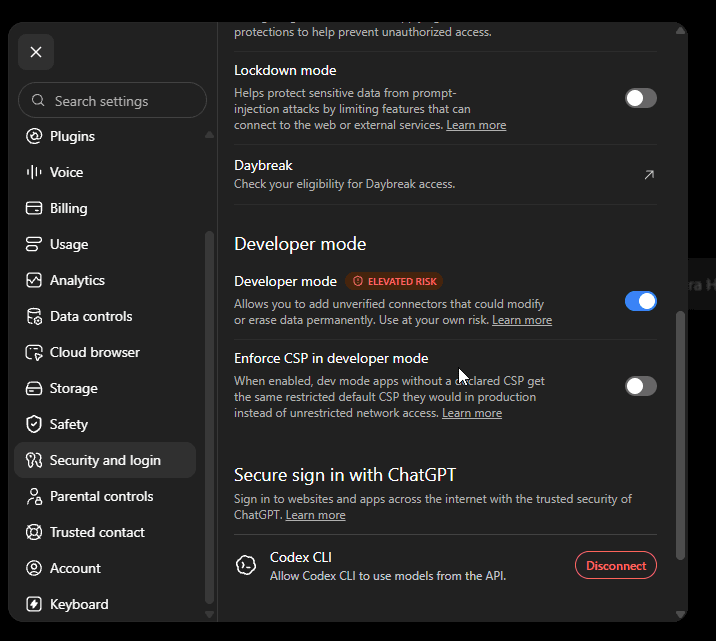
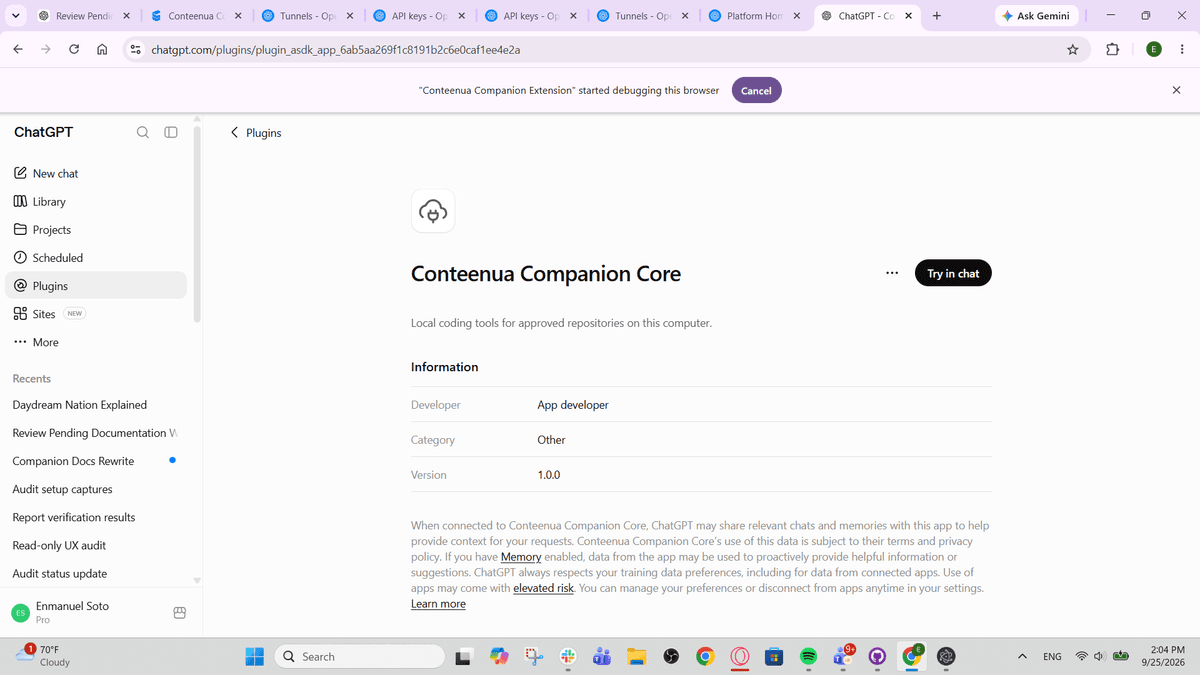
If you do not configure the persistent OpenAI tunnel, Companion can use a verified Cloudflare quick tunnel for testing. Its public URL can change after Companion restarts, so a ChatGPT app created with Server URL mode may need to be refreshed or recreated.
PRIVACY AND PERMISSIONS
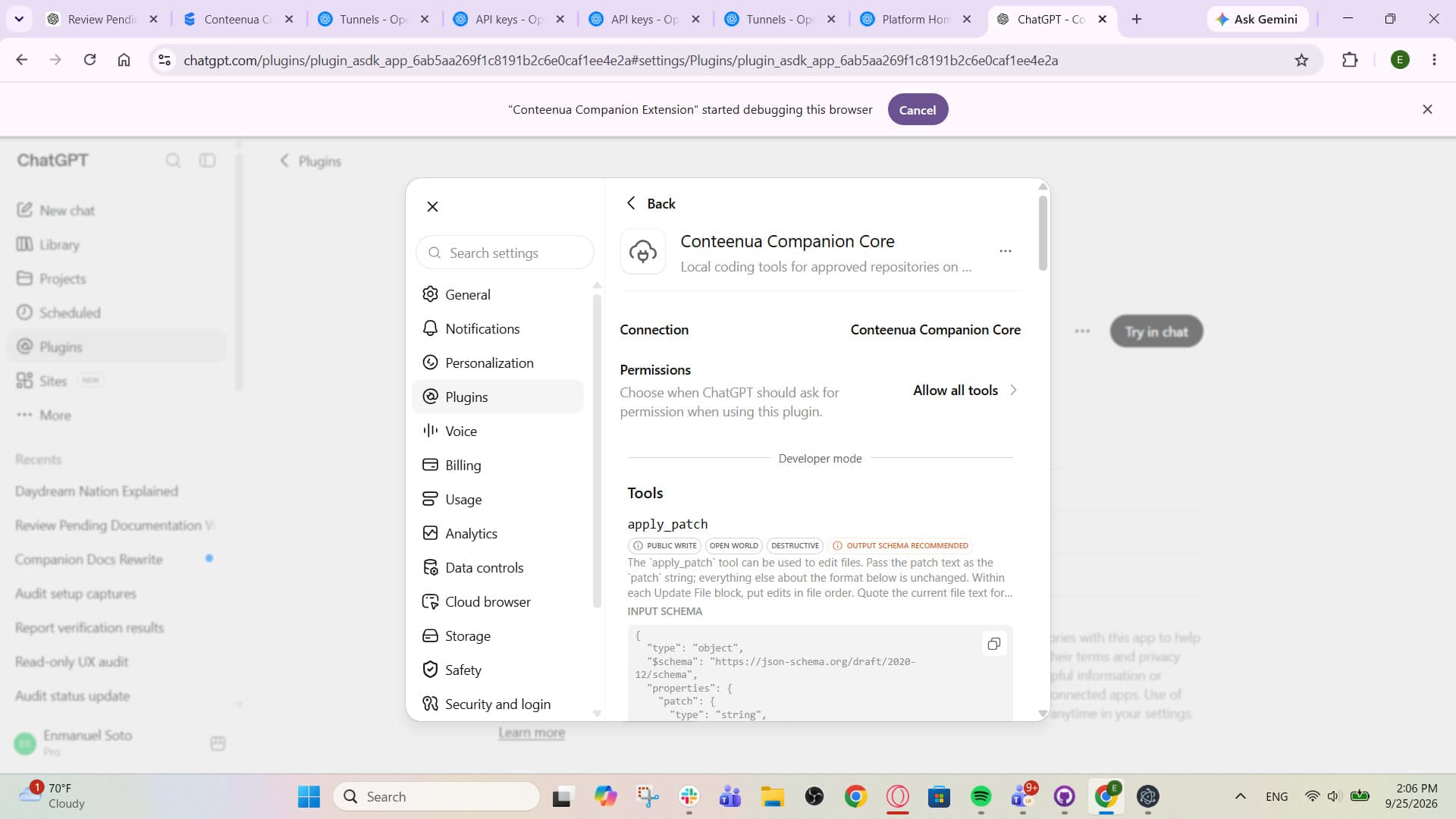
Model-facing file tools are limited to folders you approve. Terminal commands run as your logged-in operating-system user, so command execution is a separate permission and higher-risk actions can require approval.
TROUBLESHOOTING
Keep Companion open, confirm you signed into the same Conteenua account, and check that the computer can make its outbound connection. No inbound router port is required for Conteenua remote control.
Confirm Developer mode is available in that ChatGPT workspace and the Companion Core app exposes writable local tools. If the account does not support them, Conteenua keeps Start coding disabled rather than switching to Codex or Conteenua AI.
Recheck the persistent tunnel ID and restricted tunnel API key, save the connector again, then reconnect local tools. Companion only reports ready after the connector is actually reachable.
A Cloudflare quick-tunnel URL can rotate after restart. Copy the new verified URL and refresh or recreate the ChatGPT MCP App that used Server URL mode.
Approve the folder from the Companion running on that computer. Selecting a cloud project cannot widen local folder access.
DOWNLOADS AND CHECKSUMS
Each button downloads the matching installer directly. For Linux, choose AppImage for a portable package or DEB for Debian and Ubuntu. The checksum manifest is available below.
Run this in PowerShell from the folder containing the installer, then compare the 64-character hash with the line for the same filename in SHA256SUMS.txt:
Get-FileHash .\Conteenua-Companion-Setup-x64.exe -Algorithm SHA256On macOS or Linux, use shasum -a 256 <filename> (or sha256sum <filename> where available) and compare it to the same release manifest.
SHA256SUMS.txtChoose Use your own AI, select the connected computer and approved project, write the instruction, and start the normal ChatGPT session. You can follow up, review activity, approve or deny gated actions, pause, resume, stop, or open ChatGPT directly.
Open Conteenua